Instagram Edits Carousel: Create Slides and Check Access
Create a photo-and-video carousel in Instagram Edits. Follow Meta's documented steps, check the iOS rollout and handle a missing Carousel option safely.
Sources checked October 15, 2026. Independent guidance, not Meta support. We have not tested these steps on a phone; controls and availability can vary by app version and device.
To create a carousel in Instagram Edits, open Projects, tap the plus button, choose Carousel, and select your photos or videos. Arrange the slides, review them and share to Instagram or download. Meta's October 8 announcement describes an iOS-first launch; check your installed version rather than assuming Android availability.
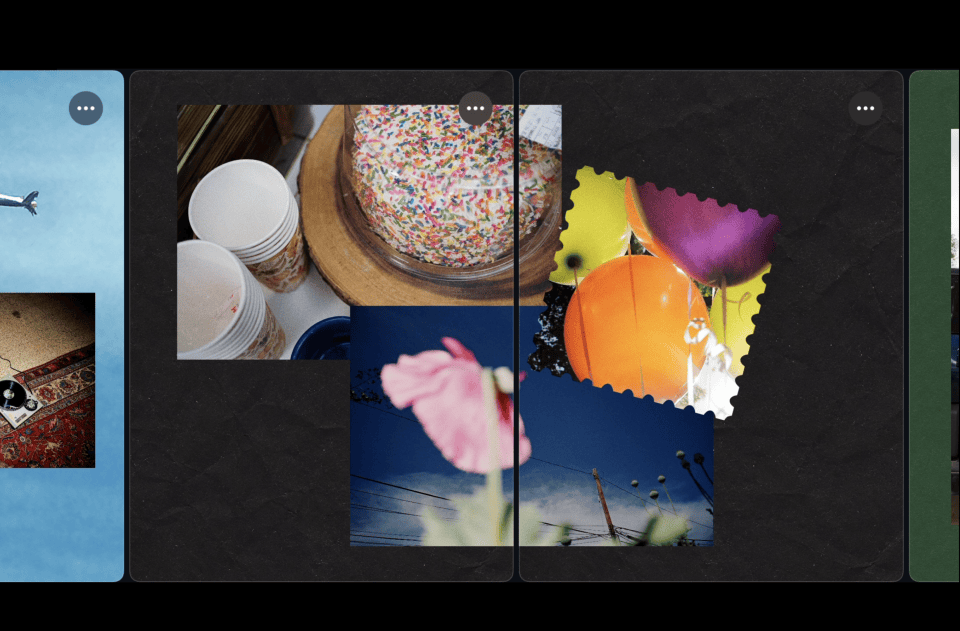
Image: Meta's official carousel announcement in Japanese. This is Meta's product illustration, not a screenshot from our testing.
What changed, and what is confirmed?
An October 11 X post by Kiran Dorad highlights the new carousel tools. We checked the feature against Meta's announcement rather than treating the social post as a complete tutorial.
Meta documents a canvas for photos, videos and text, with layouts, cutouts, filters and adjustments. It also describes adding slides with plus, managing slides through their three-dot menus, and sharing directly or downloading.
The platform qualification matters: the October 8 announcement says iOS only at launch, with Android planned later. The Android store listing, checked October 15, has general update notes but does not establish a carousel rollout date. We have not tested this on a phone.
Check for Carousel before preparing the whole post
Open the app's project creation controls and look for the actual option. Do not assume that a video project and a carousel project have interchangeable editing or output controls. If the option is missing, use the availability checklist below before spending time rebuilding a completed Reel.
A carousel is a post with separately browsable slides. A slideshow saved as a single video is still one video, even if it contains several photographs. Decide which deliverable you need before editing. That distinction also matters when a client asks for individual slide files rather than a playback sequence.
Prepare the material you already have
Keep the original photographs and video clips outside the editing project. Use files you own or have permission to publish. Remove private customer details, visible addresses and unapproved material before putting it in a public post.
Write down the intended order in the worksheet. Give each slide a purpose and identify which source file belongs there. This is an organisation step, not a requirement to invent a new content concept. A finished shoot, existing tutorial or approved product explanation can provide the material.
Check wording before placing it. Product names, measurements, dates and qualifications should match the approved source. Fixing the same sentence on several slides is avoidable work.
Build and review the slide sequence
Start with a small selection of authorised material. Place it in the intended order and check the first and last slides before adding more decoration. Where your version offers slide duplication, verify that copied text and images still belong on the new slide.
Review one slide at a time at normal phone size. Text that is readable in the editor's enlarged view can still be too small in the post. Keep the important sentence separate from a busy photograph rather than relying on a thin outline to make it readable.
For elements spanning adjacent slides, inspect both sides of the join. A face, product label or short instruction split at the wrong point can become confusing when each slide is viewed independently. The decorative join should not carry information that disappears when someone stops swiping.
If the post contains a speaking video, review its subtitles separately. The Edits caption troubleshooting guide covers missing words and timing; decorative slide text does not replace an accurate speech transcript.
What to do if the Carousel option is missing
Record your phone model, operating system and Edits version. Check the official iPhone listing or Android listing for an available update. Reopen the saved app state before checking the creation menu again.
Do not install an unofficial build, change accounts repeatedly or erase app data to force a rollout. None of the sources above establishes those actions as a supported way to enable Carousel. Keep your existing projects intact.
If the option is still absent, prepare the slide order and approved text outside Edits and use another available carousel workflow for the deadline. Do not tell a client the feature is available on their device merely because the app itself is installed.
| Observation | Useful next step |
|---|---|
| Carousel appears in project creation | Try a short project before committing the whole post. |
| Video projects work, but Carousel is missing | Record platform and version; check the dated rollout statement. |
| A slide contains incorrect wording | Correct the approved text and inspect every copied occurrence. |
| A downloaded result is not the requested format | Inspect the actual output; do not rename a video as separate slides. |
Check the exact result before publishing
Review the destination preview, not just the editing canvas. Confirm slide order, crop, legibility, audio where relevant and whether every selected item is included. If you download the result, open the delivered files and check what was actually saved.
Keep a record of the final order and filenames. Downloading is useful for delivery, but it should not be described as an editable-project backup without verifying what the app preserves. Retain the source files and approved wording so another editor can understand the work.
For a single Reel instead of a swipeable post, use the Edits export-settings guide. Video resolution choices do not answer whether a carousel's individual slides are correct.
After the post is ready
Choose one relevant next step for the viewer. If the post offers a checklist or product resource, make sure the promised destination works before publishing. Creator Lane's creator workflow can send a requested resource by DM when someone comments the matching keyword.
This is a connection between a published post and a requested resource, not a claim that using Edits, adding slides or enabling automation increases reach. Measure the post's response separately from whether the editor completed the file correctly.
Edits carousel preparation and review checklist
Record availability, source files, slide order and the exact delivered result before publishing.
Preview the complete template
EDITS CAROUSEL PREPARATION AND REVIEW
Sources checked: October 15, 2026. Independent checklist; not Meta support.
Launch documentation: iOS first. Check your installed version.

AVAILABILITY
Phone model:
Operating system:
Edits version:
Official update checked:
Carousel visible under Projects > plus?:
If absent, deadline fallback:
Do not erase local projects or install unofficial builds to force a feature.

PROJECT
Post purpose:
Swipeable slides required, or one video?:
Original files retained at:
Permission to use photos / video / music checked:
Private information removed:
Approved wording stored at:

SLIDE RECORD - repeat for every slide
Position:
Original filename:
Photo / video:
Purpose:
Approved heading:
Names / dates / numbers checked:
Crop preserves the important subject:
Text readable at normal phone size:
Copied text updated:
Spoken video has reviewed subtitles:
Join with previous / next slide checked:

DELIVERY
Expected destination:
Direct share or download:
Actual file types saved:
All slides present:
Correct order:
First and last slide checked:
No unintended duplicate:
Music / voice checked where present:
Destination preview reviewed:
Final filenames / version:
Approved by:
Date:

RESOURCE FOLLOW-UP
Promised resource:
Destination URL tested:
Comment keyword, if used:
Requested DM matches the promise:
No reach or conversion guarantee claimed.

Keep source files and approved wording. A delivered download does not by itself prove that the editable project is backed up.
Free plain-text file. Edit it in any notes app or document. You may adapt our original worksheet for personal and client work; linked third-party assets keep their own licences.